Does not need scanner software to work. Just turn on the pen and once it's powered up properly, plug it into the computer, then select 'keyboard' and it will scan to whatever document is open.
Blog: TTTThis
Note: sometimes a new install connects to your wifi, but there is no internet service. So (sometimes the last 3 steps don't work or are not required):
- systemctl enable systemd-networkd
- systemctl enable systemd-resolved
- systemctl start systemd-networkd
- systemctl start systemd-resolved
- ln -sf /run/systemd/resolve/resolv.conf /etc/resolv.conf
- service resolvconf restart
- service network-manager restart
If you intend to have VirtualBox Oracle (VirtualBox is increasingly hard to install on Debian, but don't forget, there are FOSS Alternatives. VirtualBox is not the only VM software.) on the computer, you may want to do that now, since it's the only bitch to install. Should you use install virtualbox-dkms (or will that just not work)? Should you download from their website, and if so, which version (there are lots of issues reported with varios OSs and various VirtualBox editions)?
VERIFYING download is not difficult. Download it, then click on the ‘sum’ thing on the download element to see the SHA256 checksum. That number should match the number you get when you cd Downloads and:
- shasum -a 256 kali-linux-2022.1-live-i386.iso
- (or whatever your download is called)
- it takes a few seconds to retrieve the number in Terminal.
- https://www.kali.org/docs/introduction/download-official-kali-linux-images/
THINGS
- Time zone: cuba, or Latin American countries are listed like 'Americas/CountryName'
- Power Manager (otherwise it will dim after 120seconds): Keep screen from locking:
- Top-left menu > Settings > Power Manager > (fourth tab) Security > Automatically lock: Never, and uncheck []Lock screen when system is going to sleep
- in Power Settings, you have to click the top buttons for ‘plugged in’ and ‘on battery’ and do both
- Menu > Keyboard > Layout, unlock the Default settings and +add Spanish, and set a ‘Change layout option.' I selected Ctrl-shift to change language input
- Disable login screen. Didn't find a way.
SECONDARY THINGS
- For FONTS, just put a folder with them in home/username/.local/share/fonts
- Kali has a bunch in user/share/fonts. You can delete some (I'm not sure which ones you can delete without losing render ability. But I deleted the Noto folder (so many fonts), roboto, and some others. I had to change the fonts in CherryTree after (File > Freferences > Fonts) urw-base35 is the one used by LibreOffice (and maybe CherryTree also). Spanish fonts: Antic, Aquiline.
- Hindi fonts won't display unless you sudo apt-get install fonts-indic
- Garamond font for book printing
- .fonts in home directory acts like a place to find fonts
- /usr/share/fonts is where pre-installed system fonts are (maybe don't delete these)
- Or find your font location by opening Font Manager and R-click > Open location
- Make shortcuts on Desktop to Webpages: Make webpage a Favorite in browser, then drag it onto the Desktop.
- Change wallpaper: Settings > Settings Manager > Desktop
- Zoom into screen with Start + scroll wheel
- Fotowall ffrom website and make the 64-bit file executable and just launch it from the file
- gnome-system-monitor shows internet traffic. Unlike Task Manager
- sudo apt-get install fonts-thai-tlwg to install Thai fonts ไทย
INSTALL (already has Gparted, good text editors, Screenshot, Python, and something like Task Manager. Does not have snapd, audacity or VLC so no need to remove them).
- sudo apt-get install hydrogen gimp kdenlive gnome-disk-utility shotwell vokoscreen libreoffice inkscape secure-delete imagemagick fonts-indic cherrytree system-config-printer cups font-manager && Systemctl enable cups
(after installing the Epson ecotank it was set to the wrong model and missed magenta lines. I double-clicked the printer in Print Settings and selected the actual model and it worked then, but not on ‘regular paper’ setting)
sudo apt-get install lmms (but the audio is scratchy)
- sudo apt-get install openvpn
- sudo apt-get install monodevelop (not yet)
sudo apt-get install ardour
blender comes as a tar.zy from https://www.blender.org/
- Open terminal in the folder and type tar xz blahblah.tar.xz ... (this will unpack it into a blender folder). Go in that folder. The blender file will be an executable.
- Ardour. Have to use their site for the AppImage, and they send the DL link to your email
- Bitwig. Check version number of your previous projects (if they were in version 3 and you install 2.4, it won't open them)
CHERRY TREE
- make a .ctb file and save it to Desktop and set it to open default-ly with CherryTree
- Can increase font size by CTRL + scrollwheel
- User manual: https://giuspen.com/cherrytreemanual/
OTHER PRINTER INSTRUCTIONS (not sure if the above replaces this):
- Plug in printer and find driver
- https://subba-lakshmi.medium.com/how-to-install-and-configure-printers-on-kali-linux-78a0476b3cfe
- (Needs cups (Common Unix Printing System))
- sudo apt-get install cups cups-client "foomatic-db"
- (become root (necessary for next step) with:)
- sudo -i
- /usr/sbin/adduser root lpadmin
- (check if root is added with:)
- groups root
- (restart cups and kali with:)
- sudo service cups restart
- (then enable cups:)
- sudo systemctl enable cups
- (then start cups:)
- sudo systemctl start cups
- (open in a browser:)
- http://127.therestofthenumber
OTHER THING ON FONTS
BROWSER
- FIREFOX does shitty things, so do this: https://www.youtube.com/watch?v=2nOHxCSsv5g (watch before even DOWNLOADING) ...
- alternatives: Brave (Chromium monopoly) and LibreWolf. Brave.com/linux has it's Terminal commands, which are currently:
yes | sudo apt install apt-transport-https curl && sudo curl -fsSLo /usr/share/keyrings/brave-browser-archive-keyring.gpg https://brave-browser-apt-release.s3.brave.com/brave-browser-archive-keyring.gpg && echo "deb [signed-by=/usr/share/keyrings/brave-browser-archive-keyring.gpg arch=amd64] https://brave-browser-apt-release.s3.brave.com/ stable main"|sudo tee /etc/apt/sources.list.d/brave-browser-release.list && sudo apt update && sudo apt install brave-browser
Or
- sudo apt install apt-transport-https curl
- sudo curl -fsSLo /usr/share/keyrings/brave-browser-archive-keyring.gpg https://brave-browser-apt-release.s3.brave.com/brave-browser-archive-keyring.gpg
- echo "deb [signed-by=/usr/share/keyrings/brave-browser-archive-keyring.gpg arch=amd64] https://brave-browser-apt-release.s3.brave.com/ stable main"|sudo tee /etc/apt/sources.list.d/brave-browser-release.list
- sudo apt update
- sudo apt install brave-browser
VM
- See note below on AnyDesk, because inside a VM Kali doesn't seem to be able to install AnyDesk. Lubuntu from site.
SALAMANDER PRO (Piano)
- Download from website. In folder, Terminal, then tar xf [filename]. This makes an .sfz file.
- (that didnt work, I think maybe only sf2 files)
HTTrack (for downloading entire websites for offline reading)
ANYDESK
- Don't forget, it works on Lubuntu. But doesn't seem to work on Kali
- anydesk from website. Comes as a .deb file.
- Missing libdgk-whatever. Upgrade DOES NOT fix this.
- So far, can't get it to work, although I think I got it to work once on someone's Kali
- sudo apt update
- sudo apt install -y gnupg2
- sudo sh -c 'echo "deb http://deb.anydesk.com/ all main" > /etc/apt/sources.list.d/anydesk.list'
- wget -qO - https://keys.anydesk.com/repos/DEB-GPG-KEY | sudo apt-key add -
- sudo apt -y update && sudo apt -y install anydesk *then, because kali isn't supported: *wget http://archive.ubuntu.com/ubuntu/pool/universe/p/pangox-compat/libpangox-1.0-0_0.0.2-5.1_amd64.deb sudo dpkg -i libpangox-1.0-0_0.0.2-5.1_amd64.deb
- https://computingforgeeks.com/how-to-install-anydesk-on-kali-linux/ and https://old.reddit.com/r/AnyDesk/comments/qip1ka/kali_linux_not_working_libpangox10so0_issue_at/
YT_DLP (youtube-dl didn't work for me last time)
- https://github.com/yt-dlp/yt-dlp
- sudo wget https://github.com/yt-dlp/yt-dlp/releases/latest/download/yt-dlp -O /usr/local/bin/yt-dlp
- sudo chmod a+rx /usr/local/bin/yt-dlp
- https://linuxconfig.org/yt-dlp-vs-youtube-dl
For mp3:
$ yt-dlp -f 'ba' -x --audio-format mp3 https://www.youtube.com/.....
https://write.corbpie.com/downloading-youtube-videos-and-playlists-with-yt-dlp/
For playlist:
- yt-dlp -f 'bv*[height=1080]+ba' --download-archive videos.txt https://www.youtube.com/playlist?list=etcetcetc... -o '%(channel_id)s/%(playlist_id)s/%(id)s.%(ext)s'
Virtualbox can be installed with apt install, but produces an error
Next time, try virtualbox-dkms first and see if that works
Kernel driver not installed (rc=-1908)

The VirtualBox Linux kernel driver (vboxdrv) is either not loaded or there is a permission problem with /dev/vboxdrv. Please reinstall virtualbox-dkms package and load the kernel module by executing

'modprobe vboxdrv'
But this doesn't work. Sudo apt upgrade it.
other
sudo apt install qbittorrent
Before you start, you will need: -Accounts info, to log into Bitwig, to log into any SMs in VMs (jam5, b...1,) -Don't delete old hard drive until test that Printers work, VMs work (including Guest Additions shared folder), -Don't delete the old hard drive SSD until you've tried out banking, social media)
KALI INSTALL 2023
- Don't install VirtualBox it doesn't work anymore on Debian usually. Use Qemu (foss). Actually Qemu sucks I had to use VirtualBox again.
- AnyDesk doesn't work in Kali, but does work on an OS installed on a VM

After installing Kali (and verifying), internet might connect but not work. Do:

systemctl enable systemd-networkd
systemctl enable systemd-resolved
systemctl start systemd-networkd
systemctl start systemd-resolved
UPDATES AND INSTALLS Takes a few minutes ... meanwhile do the setup things which follow
(Kali already has Gparted, good text editors, Screenshot, Python, and Task Manager Does not have snapd, audacity or VLC so no need to remove them). It also already has vim so you can write bash scripts with .sh suffix. It doesn't have nano.
sudo apt-get install hydrogen gimp gnome-disk-utility shotwell vokoscreen libreoffice inkscape secure-delete imagemagick fonts-indic fonts-thai-tlwg xinput cherrytree gdebi gdebi-core clamav clamtk gnome-system-monitor system-config-printer cups font-manager && sudo systemctl enable cups
(note that some things might and require dependencies and then retry, like gdebi/gdebi-core)
(xinput allows you to disable touchscreen and other things)
(graphical gdebi is gdebi-gtk. I don't know if this note is needed)
(kdenlive is better as an appimage because they do updated versions which don't work (freeze upon render). Don't use new versions, either, although they do have some effects. 19.04 works but rendered images just all white for me last time, so I used version 17 (there's still other version 20s I didn't try yet), and can be downloaded from videohelp, although check it for malware. Kdenlive doesn't offer old versions on their site.)
Set-upNote: sometimes a new install connects to your wifi, but there is no internet service. So (sometimes the last 3 steps don't work or are not required):

    systemctl enable systemd-networkd
    systemctl enable systemd-resolved
    systemctl start systemd-networkd
    systemctl start systemd-resolved
    ln -sf /run/systemd/resolve/resolv.conf /etc/resolv.conf
    service resolvconf restart
    service network-manager restart

------------------

(NOTE on VMs: I couldn't get Qemu to work nice (screens wouldn't resize, VMs would time out then not boot again, etc, so I went back to VirtualBox)
If you intend to have VirtualBox Oracle (VirtualBox is increasingly hard to install on Debian, but don't forget, there are FOSS Alternatives. VirtualBox is not the only VM software.) on the computer, you may want to do that now, since it's the only bitch to install. Should you use install virtualbox-dkms (or will that just not work)? Should you download from their website, and if so, which version (there are lots of issues reported with varios OSs and various VirtualBox editions)? I have an Install Qemu Virtual Manager on Kali .txt document here, if you want to try Qemu again.)

Verifying download is not difficult. Download it, then click on the ‘sum’ thing on the download element to see the SHA256 checksum. That number should match the number you get when you cd Downloads and:

    shasum -a 256 kali-linux-2022.1-live-i386.iso
    (or whatever your download is called)
    it takes a few seconds to retrieve the number in Terminal.
    https://www.kali.org/docs/introduction/download-official-kali-linux-images/

(after installing the Epson ecotank it was set to the wrong model and missed magenta lines. I double-clicked the printer in Print Settings and selected the actual model and it worked then, but not on ‘regular paper’ setting)

Virtualbox Oracle install:

virtualbox-dkms

and reboot (if necessary. Maybe you can just use the program without rebooting).

If you get an error that ends in (initramfs) in the VM when it boots, type
(initramfs) fsck /dev/sda1 -y
(the -y means you won't have to type y a hundred times.)
... or ... /sdaX

Sometimes gives ‘modprobe vboxdrv’ error.
(Troubleshooting if stuff doesn't work: upgrade virtualbox-dkms took a long time and didn't make it work. Same ‘modprobe vboxdrv’ error.
sudo apt-get dist-upgrade
reboot)
THINGS TO DO Would be nice to make as a script
Time zone: cuba, or Latin American countries are listed like 'America/CountryName'
Power Manager (otherwise it will dim after 120seconds): Keep screen from locking:
Top-left menu > Settings > Power Manager > (fourth tab) Security > Automatically lock: Never, and uncheck []Lock screen when system is going to sleep
in Power Settings, you have to click the top buttons for ‘plugged in’ and ‘on battery’ and do both
Menu > Keyboard > Layout, unlock the Default settings and +add Spanish, and set a ‘Change layout option.' I selected Ctrl-shift to change language input
Disable login screen. Didn't find a way.
SECONDARY THINGS Would be nice to have a script for this too
For fonts, just put a folder with them in home/username/.local/share/fonts
     Kali has a bunch in user/share/fonts. You can delete some (I'm not sure which ones you can delete without losing render ability. But I deleted the Noto folder (so many fonts), roboto, and some others. I had to change the fonts in CherryTree after (File > Freferences > Fonts) urw-base35 is the one used by LibreOffice (and maybe CherryTree also). Spanish fonts: Antic, Aquiline.
     Hindi fonts won't display unless you sudo apt-get install fonts-indic
     Garamond font for book printing
     .fonts in home directory acts like a place to find fonts
     /usr/share/fonts is where pre-installed system fonts are (maybe don't delete these)
     Or find your font location by opening Font Manager and R-click > Open location
Make shortcuts on Desktop to Webpages: Make webpage a Favorite in browser, then drag it onto the Desktop.
Change wallpaper: Settings > Settings Manager > Desktop
Zoom into screen with Start + scroll wheel
Fotowall from website and make the 64-bit file executable and just launch it from the file
gnome-system-monitor shows internet traffic. Unlike Task Manager
sudo apt-get install fonts-thai-tlwg to install Thai fonts ไทย
OTHER INSTALLS Optional
sudo apt-get install lmms (but the audio is scratchy)
sudo apt-get install openvpn
sudo apt-get install monodevelop (not yet)
sudo apt-get install ardour

Blender Use the AppImage in the OurPrograms folder, although another option is
... it comes as a tar.zy from https://www.blender.org/
Open terminal in the folder and type tar xz blahblah.tar.xz ... (this will unpack it into a blender folder). Go in that folder. The blender file will be an executable.
Ardour. Have to use their site for the AppImage, and they send the DL link to your email
Bitwig
Hard to install because of i386 dependencies
You need to install Gdebi and gdebi-core first, in order to install this .deb package, but that is done in the Updates and Installs section above
(Also, check version number of your previous projects (if they were in version 3 and you install 2.4, it won't open them)
sudo dpkg --add-architecture i386
&& sudo apt-get update
(after these two things, the i386 unmet dependencies error disappeared)
In Bitwig, set Audio to PulseAudio. Go to Settings > Behavior and turn off Data Collection. Go to User Interface and Reverse zoom direction.
Cherrytree notes make a .ctb file and save it to Desktop and set it to open default-ly with CherryTree Can increase font size by CTRL + scrollwheel User manual: https://giuspen.com/cherrytreemanual/
Polyphone font editor sudo apt-get install polyphone
Handbrake for converting videos to other formats, and has all codecs, I've heard
H2 Hydrogen has a similar thing but for synth/midi called SEQ24
(neovim is better than vim because you can cut/paste, but I found it stupid compared with textEditor)
OTHER PRINTER INSTRUCTIONS
(last time I installed Kali, after all the other stuff I did (including a reboot), the HP Smart Tank was able to be added with Start > Print Settings (add another one just like the one it might already detect)
(not sure if the above replaces this)
(but before that it didn't work without something from the following commands.)
(note this is a chatGPT condensed version I haven't tried:
sudo apt-get install cups cups-client "foomatic-db"
sudo -i
/usr/sbin/adduser root lpadmin
sudo service cups restart
sudo systemctl enable cups
sudo systemctl start cups
sudo apt install net-tools
ifconfig -a
)

    Plug in printer and find driver
    https://subba-lakshmi.medium.com/how-to-install-and-configure-printers-on-kali-linux-78a0476b3cfe
    (Needs cups (Common Unix Printing System))
    sudo apt-get install cups cups-client "foomatic-db"
    (become root (necessary for next step) with:)
    sudo -i
    /usr/sbin/adduser root lpadmin
    (check if root is added with:)
    groups root
    (restart cups and kali with:)
    sudo service cups restart
    (then enable cups:)
    sudo systemctl enable cups
    (then start cups:)
    sudo systemctl start cups
    (at this point I could ‘add a printer’ in Print Settings, but it didn't offer any printer drivers despite being plugged in)
    (... so I updated, but that didn't work, so I wanted my IP, so I
    sudo apt install net-tools     ... and
    ifconfig -a and saw my wlan0 IPs. Google saw the inet6 one
    https://127.0.0.1/
    and then while that was open in Print Settings it started suggesting the correct printer.
OTHER THING ON FONTS
BROWSER
FIREFOX does shitty things, so do this: https://www.youtube.com/watch?v=2nOHxCSsv5g (watch before even DOWNLOADING) ...

alternatives: Brave (Chromium monopoly) and LibreWolf. Brave.com/linux has it's Terminal commands, which are currently:

sudo apt install apt-transport-https curl
sudo curl -fsSLo /usr/share/keyrings/brave-browser-archive-keyring.gpg https://brave-browser-apt-release.s3.brave.com/brave-browser-archive-keyring.gpg
echo "deb [signed-by=/usr/share/keyrings/brave-browser-archive-keyring.gpg arch=amd64] https://brave-browser-apt-release.s3.brave.com/ stable main"|sudo tee /etc/apt/sources.list.d/brave-browser-release.list
sudo apt update
sudo apt install brave-browser
VM
See note below on AnyDesk, because inside a VM Kali doesn't seem to be able to install AnyDesk. Lubuntu from site.
SALAMANDER PRO (Piano)
Download from website. In folder, Terminal, then tar xf [filename]. This makes an .sfz file.
(that didnt work, I think maybe only sf2 files)
HTTrack (for downloading entire websites for offline reading)
ANYDESK
Don't forget, it works on Lubuntu. But doesn't seem to work on Kali
anydesk from website. Comes as a .deb file.
Missing libdgk-whatever. Upgrade DOES NOT fix this.
So far, can't get it to work, although I think I got it to work once on someone's Kali
sudo apt update
sudo apt install -y gnupg2
sudo sh -c 'echo "deb http://deb.anydesk.com/ all main" > /etc/apt/sources.list.d/anydesk.list'
wget -qO - https://keys.anydesk.com/repos/DEB-GPG-KEY | sudo apt-key add -
sudo apt -y update && sudo apt -y install anydesk *then, because kali isn't supported: *wget http://archive.ubuntu.com/ubuntu/pool/universe/p/pangox-compat/libpangox-1.0-0_0.0.2-5.1_amd64.deb sudo dpkg -i libpangox-1.0-0_0.0.2-5.1_amd64.deb
https://computingforgeeks.com/how-to-install-anydesk-on-kali-linux/ and https://old.reddit.com/r/AnyDesk/comments/qip1ka/kali_linux_not_working_libpangox10so0_issue_at/
Once installed, you have to set up unattended access.
Otherwise, you will wait for the computer to turn on AnyDesk, and you'll pick it and connect, and it will say “password or the other computer has to press grant access”.
YT_DLP (youtube-dl didn't work for me last time)
https://github.com/yt-dlp/yt-dlp
sudo wget https://github.com/yt-dlp/yt-dlp/releases/latest/download/yt-dlp -O /usr/local/bin/yt-dlp
sudo chmod a+rx /usr/local/bin/yt-dlp
https://linuxconfig.org/yt-dlp-vs-youtube-dl
For mp3:
$ yt-dlp -f 'ba' -x --audio-format mp3 https://www.youtube.com/.....

https://write.corbpie.com/downloading-youtube-videos-and-playlists-with-yt-dlp/
For playlist:
yt-dlp -f 'bv*[height=1080]+ba' --download-archive videos.txt https://www.youtube.com/playlist?list=etcetcetc... -o '%(channel_id)s/%(playlist_id)s/%(id)s.%(ext)s'
Virtualbox can be installed with apt install, but produces an error
Next time, try virtualbox-dkms first and see if that works
Kernel driver not installed (rc=-1908)
The VirtualBox Linux list: • For FONTS, just put a folder with them in home/username/.local/share/fonts • Kali has a bunch in user/share/fonts. You can delete some (I'm not sure which ones you can delete without losing render ability. But I deleted the Noto folder (so many fonts), roboto, and some others. I had to change the fonts in CherryTree after (File > Freferences > Fonts) urw-base35 is the one used by LibreOffice (and maybe CherryTree also). Spanish fonts: Antic, Aquiline. • Hindi fonts won't display unless you sudo apt-get install fonts-indic • Garamond font for book printing • .fonts in home directory acts like a place to find fonts • /usr/share/fonts is where pre-installed system fonts are (maybe don't delete these) • Or find your font location by opening Font Manager and R-click > Open location • Make shortcuts on Desktop to Webpages: Make webpage a Favorite in browser, then drag it onto the Desktop. • Change wallpaper: Settings > Settings Manager > Desktop • Zoom into screen with Start + scroll wheel
Some programs can run from AppImages, so you don't need to install them: - Blender 3d -
Some programs must be installed from their .deb file (after installing Gdebi package installer, and remember you have to OPEN Gdebi program and inside it open the .deb packages. If you just go to Thunar and open the .deb with Gdebi it will crash when you click ‘install’). - BItwig 3.0 (lower versions can't open my files created in 3) -
Some printer drivers might need to be installed (from my Programs and Drivers folder) - Ecotank? -
VMs: - Banking - YouTube, social media - Work, chatGPT, CodePen, Instagram - YT-dlp (needs size) - Ableton on Windows7, with shared folder -
INTERNET SITES Do video calls with talky.io
NOTES ON VMz - Lubuntu is small, and after setting screensize it seems to work there OK, but drag and drop didn't seem to work (Kali VM does work, and screen sizing works, right out of the box) - Lubuntu with basic apps takes up almost full 6gb (do 7gb if you want LibreOffice on it, which takes like 1gb) - Lubuntu Shared Clipboard also doesn´t seem to work
MULVAD from website is a .deb have to install gdebi gdebi-core then restart and it worked
PIPEWIRE / PULSEAUDIO https://www.youtube.com/watch?v=e2lWR1Kmvag
HOW TO UNDO PIPEWIRE AND REVERT TO PULSE systemctl --user unmask pulseaudio systemctl --user --now disable pipewire-media-session.service systemctl --user --now disable pipewire pipewire-pulse systemctl --user --now enable pulseaudio.service pulseaudio.socket sudo apt remove pipewire-audio-client-libraries pipewire https://askubuntu.com/questions/1407885/how-to-uninstall-pipewire-and-go-back-to-pulseaudio
Arduino AppImage from arduino.cc if don't have the AppImage already Hello Drum library. With the Arduino IDE program opened, go to manage libraries and it will be there in the search (downloadable). I also downloaded it locally and put it in the Software Folder "avrdude: stk500_getsync(): not in sync: resp=0x00," aka Some Dude Named Avr Won't Let Me Upload My Program ... ... This error, retry evertying, and then do Tools > Processor and try the at least 2 options 328 and 328 Old Bootloader. This worked for me.
ClamAV for antivirus/scanning sudo apt install clamav clamtk (might require an update) https://www.youtube.com/watch?v=NXsOoXiFP1E you can schedule
TTTThis
Printer driver is found automatically when you select HP laser jet (plug in printer so it can detect it) (I did this again, and HP laser jet was the one that worked the second time as well). When I printed a test page, it printed.
NOTE: You may have to, every time, set the Page Layout paper size to Paper size: Letter 8.5x11 and Orientation: Landscape, otherwise it will use it's default which will print off the page (8.25x11.69 for some reason).
TTTThis
GNU Image techniques:
- Highlight a path (could be text), the R-click > Edit > Stroke path and you can select how to draw the path (maybe using pencil, make sure your pencil width is the width you want.
- Long Shadow with Filters > Light and Shadow > Long Shadow
- Halftone effect with Filters > Distort > Newsprint, change Pattern to 'Circle', then go to Colors > Color to Alpha (turns white background to Alpha ie transparent, so any image below the image, could be the same image, will show its colors through). Then if you 'lock' the layer with the Alpha channel (click the alpha grid above the layers list) then you can select a color (the regular way) and drag the color over onto the layer to change its color.
- Make text duplicate and then wrap in a cylinder https://www.youtube.com/watch?v=ZhkSi1pSX0w&list=PL_7viLFyJ7sCLguZdKJ9dAbUUXRy13VOF&index=12
- To duplicate text, click the 'duplicate layer' button a few times. Then click on the tool 'Alignment' (it's an alternative to 'Move' ie top-left) and drag around the object (which will select all lower levels also) and then you can 'Distribute targets evenly on the horizontal' on the pane on the left and it will space them out evenly. To wrap the object, go to Help > Search and Run a Command and type 'map object' and select cylinder if that's what you want.
- Heal tool: CTRL + L-click to pick what you want your 'heal' to look like
- Reduce colors Image > Mode > Indexed
- Make a shortcut for ‘stroke selection’ ... Edit>Keyboard shortcuts then enter stroke in the search bar at the top. You will find two functions: stroke-selection and stroke-selection-last-values. The first elicits the same dialog as Edit>Stroke selection, the second is the same as Edit>Stroke selection+[enter] without changing values.
Tools and Shortkeys:
- 'Rubber band feature' to select area for all the layers underneath.
- Select all text with CTRL-A
- Change size of layers simultaneously with 'transform lock' https://www.youtube.com/watch?v=Yk64-pTq3cE&list=PL_7viLFyJ7sCLguZdKJ9dAbUUXRy13VOF&index=15
SUBVERSION OF POWER:
- is in fill, in the details it has 'pattern fill'
- PATTERNS: Export any image as .pat, then move that file to /home/COMPUTERNAME/GIMP/2.10/patterns, and then restart GNU Image
- Make halftone. Duplicate your image and go to Colors > Exposure and take the Black level down (so everything looks kinda grey. Now apply the Filter > Distorts > Newsprint and make the Pattern a circle. Now go to your other unedited image and highlight all the black and copy paste it onto the image you edited with Exposure and Newsprint.
OUTLINES
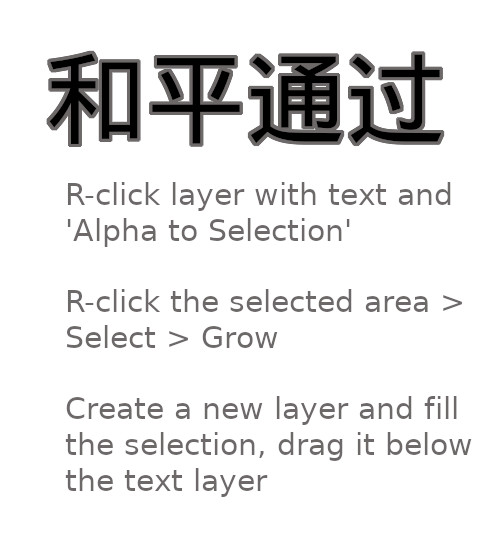
MULTIPLES for STICKERS
Filters > Map > Tile ... and then select the size
OUTLINES
Filters > Edge detect > Edge ... Laplace
SCREENPRINT BY DEVIDING THE IMAGE INTO 4 COLORS
full color - CMYK
Gnu image doesn't have (and won't soon) CMYK, so use Photoshop.
Resynthesizer plugin
- (DID NOT WORK)
- will be located in Filters > Enhance > Heal
- update then
- sudo apt install gimp-plugin-registry
- but doesn't work on new Ubuntus because they removed gtk2. You could try an older Ubuntu. Or install gtk2 with:
- sudo apt-get install gtk2.0 (this installs a ton of stuff)
- then
- sudo apt-get install build-essential libgtk2.0-dev
Gradient border
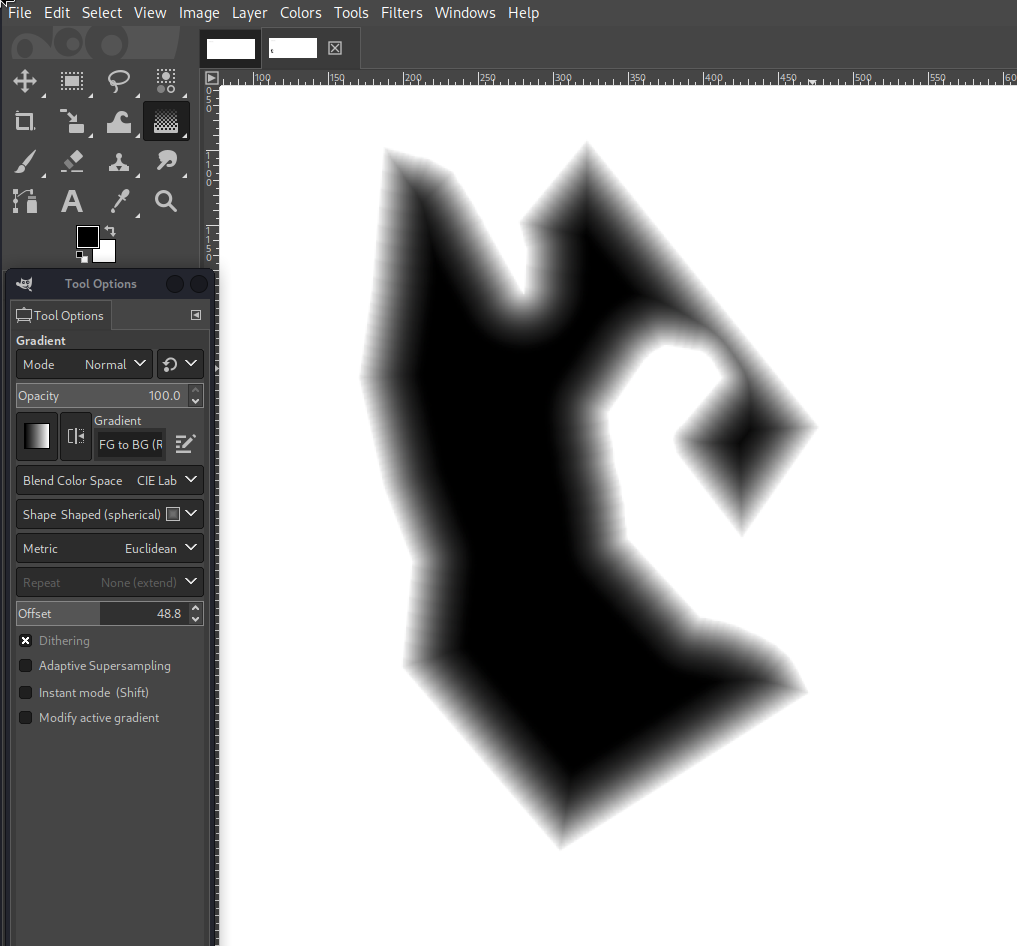
Shape Shaped Spherical https://graphicdesign.stackexchange.com/questions/134410/gradient-border-using-gimp
TTTThis
Garamond font
Remember, you have to put the same stack of paper into the printer twice (once for even numbers, once for odd). You just take the stack that's printed the first time, and put it back in the feed tray exactly as it sits in the already-printed tray.
Formatting:
- (Not columns) (or yes)
- Font-size:16 (18 is a bit big)
- Insert > Footer
- Insert > Page number
- Center the footer page number the regular way
- Format > Page style > Margins: Make Top and Bottom each 0.05
- Right click all selected text > Paragraph style > Spacing: Below paragraph 0.2
- Right click all selected text > Paragraph style > Line spacing: Fixed 0.1
Printing:
- even pages
- brochure
Second print on same pages:
- odd pages
- reverse order
- brochure

OR:
Formatting:
- Right click all selected text > Paragraph style > Spacing: Below paragraph 0
- Right click all selected text > Paragraph style > Indent: First line 0.35

Printing
Make sure to set paper size each time
then re-organize the pages you printed so first is last (deal them down onto your desk)
TTTThis


