Blog: Example

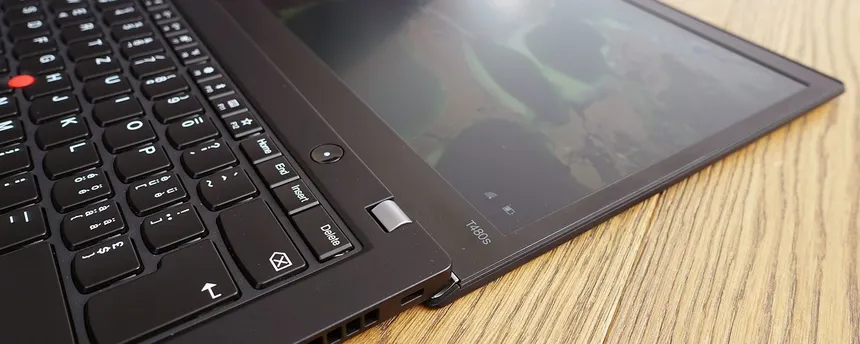
Thinkpad T480s

Image

Lenovo ThinkPad T480s (2018) is a durable, lightweight business laptop designed for portability and performance, featuring an 8th Gen Intel Core processor (i5-8250U or i7-8550U), up to 16GB of RAM, and a 256GB NVMe SSD. It offers up to 15.6 hours of battery life, a 14-inch FHD (1920x1080) IPS display, and a ThinkShutter camera cover for privacy. The laptop includes Thunderbolt 3, HDMI, USB-C, USB 3.0, and an Ethernet port, making it highly versatile for business use.

It only uses nmve, and yes, you do have to use a hacked Windows7, but unlike more modern computers, it at least talks the language Windows7 talks, so while with more modern ones there's much more hacking/modifications and it still might not boot, this one is minimal and everything should just work. It can be LIBREBOOTED, but this is a hardware thing (hardware tool like a CH341A programmer (with a 3.3V mod) and a SOIC-8 clip.).

When you look at the raw numbers, the i7 seems faster, but in a thin laptop like the T480s, the "real-world" benchmark is often a tie. Because both chips have the same 4 cores and 8 threads, the cooling system becomes the bottleneck, not the silicon.

i5 then i7 PassMark (Multi-Thread) ~6,105 ~6,194 ~1.5% PassMark (Single-Thread) 1,988 2,102 ~5% L3 Cache 6MB 8MB +2MB Max Turbo Frequency 3.6 GHz 4.2 GHz +600 MHz

For a hacked Windows 7 and DSP56300 VSTs—the i5 version of the T480s is arguably better than the i7. Identical core counts, plus...

The T480s is a slim laptop. The i7-8650U generates a lot of heat. Because the cooling system is identical for both models, the i7 often hits its thermal limit and throttles (slows down) within minutes of heavy use. The i5-8350U runs cooler and can maintain its "Turbo" speed for much longer. In real-world music production (where you have sustained CPU loads from VSTs), an i5 that stays at 3.0GHz is better than an i7 that spikes to 4.0GHz and then crashes down to 1.8GHz because it got too hot.

The Throttling Trap: Under a sustained load (like running your DSP56300 VSTs in Ableton), both CPUs will eventually drop their speed to around 2.6 GHz – 2.9 GHz to keep from melting. The i7 might start faster, but it hits the "heat wall" sooner and throttles harder. Audio Latency: For music production, stability is more important than "peak speed." The i5 generates less heat, meaning the cooling fan doesn't have to ramp up and down as aggressively, which can sometimes cause tiny voltage spikes or "DPC Latency" pops in your audio. The Cache Benefit: The i7’s extra 2MB of L3 cache can help with complex sample-based instruments, but the DSP56300 emulators are purely mathematical/algorithmic. They care more about steady clock speed than cache size.

Key highlights:

  • Processor: Intel Core i5-8250U or i7-8550U (quad-core, up to 4.0 GHz turbo).
  • Storage: 256GB NVMe SSD (upgradable).
  • Display: 14" FHD IPS (1920x1080), anti-glare, 250 nits brightness.
  • Ports: Thunderbolt 3, HDMI, USB-C, USB 3.0, Ethernet, SD card reader, headphone/mic jack.
  • Security: ThinkShutter, fingerprint reader, security chip, Kensington lock slot.
  • Operating System: Windows 10 Pro or Windows 11 Pro (refurbished models).
  • Some come as touch screen but not most

WEIGHT

  • ThinkPad T480s ~1.32 kg ~2.9 lbs Slim, modern slab.
  • ThinkPad T480 (Small Battery) ~1.63 kg ~3.6 lbs Boxy, traditional build.

RAM, the "Official" vs. "Real" Max. Lenovo says: The max is 20GB or 24GB. (This is because when the laptop was released, the largest single RAM stick you could buy was 16GB). The Reality: The max is 40GB. This is for i5 and i7 both. You can successfully install a 32GB stick in the expansion slot, and it will work perfectly. The non slim T480 has two non soldered slots so can hold up to 64GB.

Audio is about Capacity: In music production, the biggest performance killer is running out of RAM and having your computer use the "Page File" (the SSD) as emergency memory. Even "slow" Single-Channel RAM is thousands of times faster than the fastest SSD.

Modern Intel-based laptops like the T480s use a technology called Intel Flex Mode, so you can have non paired RAM (the soldered 8gb plus expansion 32gb). The Dual-Channel Zone (First 16GB): The 8GB of soldered RAM pairs up with the first 8GB of your 32GB stick. This creates a 16GB "high-speed" block that runs in Dual-Channel Mode. The Single-Channel Zone (Remaining 24GB): The leftover 24GB on your 32GB stick will run in Single-Channel Mode.

POSSIBLE RAM CONFIGURATIONS IN THE T480s

  • Scenario A: Your T480s has 4GB soldered + 16GB stick = 20GB Total (most come with 8 but some have 4)
  • Scenario B: Your T480s has 8GB soldered + 32GB stick = 40GB Total

RAM TYPE

  • Type DDR4 SODIMM (260-pin)
  • Speed 2400MHz (You can use 3200MHz; it will just slow down to 2400MHz
TTTThis

Pass code

dism /Mount-Wim /WimFile:boot.wim /Index:2 /MountDir:C:\mount

dism /Cleanup-Mountpoints

rd /s /q C:\mount

mkdir C:\mount

dism /Mount-Wim /WimFile:C:\win7\sources\boot.wim /Index:2 /MountDir:C:\mount

C:\UpdatePack7R2.exe /WimFile=C:\win7\sources\install.wim /Index=* /NVMe /Optimize %%%%%

C:\UpdatePack7R2.exe /WimFile=C:\win7\sources\boot.wim /Index=2 /NVMe %%%%%

mkdir C:\mount %%%%%

dism /Mount-Wim /WimFile:C:\win7\sources\boot.wim /Index:2 /MountDir:C:\mount %%%%%

dism /Image:C:\mount /Add-Driver /Driver:C:\Drivers /Recurse %%%%%

dism /Unmount-Wim /MountDir:C:\mount /Commit %%%%%

dism /Mount-Wim /WimFile:C:\win7\sources\boot.wim /Index:2 /MountDir:C:\mount dism /Image:C:\mount /Add-Driver /Driver:C:\win7\drivers /Recurse dism /Unmount-Wim /MountDir:C:\mount /Commit

dism /Mount-Wim /WimFile:C:\win7\sources\boot.wim /Index:2 /MountDir:C:\mount

dism /Unmount-Wim /MountDir:C:\mount /Discard

dism /Cleanup-Wim

dism /Mount-Wim /WimFile:C:\win7\sources\boot.wim /Index:2 /MountDir:C:\mount

dism /Image:C:\mount /Add-Driver /Driver:C:\win7\drivers /Recurse

dism /Unmount-Wim /MountDir:C:\mount /Commit

genisoimage -o win7_t480s_final.iso -b boot/etfsboot.com -no-emul-boot -boot-load-size 4 -boot-info-table -R -J -v -V "Win7_Ableton" ./win7

TTTThis

External monitors on Pixels and other phones

Pixel 8, 8a etc and later Pixels are shipped with the ability to connect an external monitor (finally). You can just plug in a usbc to hdmi and plug in a monitor, or you can plug the usbc into a dock or hub (note some do but most don't come with an audio out but do push audio through the hdmi) and connect the hub to the monitor. No software required. GrapheneOS same, no software required. However, you might have to long press the Pixel's screen and go into options and turn on rotate desktop. You might also have to go into Dev options and

"Enable Key Desktop Features"

Go to Settings > System > Developer options.

Scroll down to the "App compatibility" or "Drawing" sections.

Look for and enable the following flags:

Force desktop mode (This enables the basic desktop environment.)

Enable freeform windows on secondary display (This is crucial, as it tells the system to use the external screen as a separate display with resizable windows, rather than just mirroring.)

PIXEL 7 OR EARLIER (that don't have the hardware built into them to stream, ie chipset)

Use a hub that has ‘DisplayLink’ (company) that makes the graphics chip that allows the phone to stream to a monitor.

https://www.youtube.com/watch?v=UJ4hzT7It2o&t=509s

An example product that I think probably works

"HDMI Adapter USB Type C Cable 4K MHL Converter Cord w/Charging Port for TV Projector Monitor Connet Samsu…"

But for sure the adapter requires a graphics chip in. Renkship and Maylowen make them.

Install the app called Displaylink presenter (which is just a driver basically, you don't need to launch it, it just is installed).

NOTE

Mouse doesn't work on external monitor. Streaming like Netflix is encrypted and will just show as black on the external.

PIXEL 3 (same thing as above)

Display link certified adapter.

https://www.youtube.com/watch?v=Yz8cr3vXKM4

ANY PHONE RUNNING ANDROID 14.4 or later

https://www.youtube.com/watch?v=44-jXexQ8Kk Tested out the Moto G Fast, Samsung A01, and the Alldocube iplay40 in this video.

2-in-1 USB Type C/Micro USB to HDMI Cable adapter (chip with 128mb ram).

He says you can send audio through bluetooth from the phone to the unit to pipe it into the monitor through the hdmi.

This uses MiraPlug Mirrorcast app. So who knows trustworthy.

OTHER PHONES

Samsung S8 and later, S21 (earlier I think also?), plug and play.

TTTThis

Kali install 2025

If you try to update and you get ‘the following signatures couldnt be verified because the public key is not avialable, and then a gpg error etc’, Since apt update is blocked, you have to manually download the new keyring (the kali-archive-keyring.gpg file) and put it where the system can see it.

Do

sudo wget https://archive.kali.org/archive-keyring.gpg -O /usr/share/keyrings/kali-archive-keyring.gpg

...

...

  • Install List
  • Brave
  • Do things
  • QEMU
  • Printer (ecotank)
  • Bitwig


INSTALL LIST

(Used the same code from 2023 https://tttthis.com/blog/kali-install-2-in-2024 and 2024 https://tttthis.com/blog/kali-install-3-2024 .)

sudo apt-get install hydrogen shotwell gnome-disk-utility gimp shotwell vokoscreen libreoffice inkscape secure-delete imagemagick fonts-indic fonts-thai-tlwg xinput cherrytree gdebi gdebi-core clamav clamtk gnome-system-monitor system-config-printer cups font-manager && sudo systemctl enable cups 

...

BRAVE BROWSER

sudo apt install apt-transport-https curl
sudo curl -fsSLo /usr/share/keyrings/brave-browser-archive-keyring.gpg https://brave-browser-apt-release.s3.brave.com/brave-browser-archive-keyring.gpg
echo "deb [signed-by=/usr/share/keyrings/brave-browser-archive-keyring.gpg arch=amd64] https://brave-browser-apt-release.s3.brave.com/ stable main"|sudo tee /etc/apt/sources.list.d/brave-browser-release.list
sudo apt update
sudo apt install brave-browser

...

DO THINGS

  • Time zone: cuba, or Latin American countries are listed like 'Americas/CountryName'
  • Power Manager (otherwise it will dim after 120seconds): Keep screen from locking:
  • Top-left menu > Settings > Power Manager > (fourth tab) Security > Automatically lock: Never, and uncheck []Lock screen when system is going to sleep
  • in Power Settings, you have to click the top buttons for ‘plugged in’ and ‘on battery’ and do both
  • Menu > Keyboard > Layout, unlock the Default settings and +add Spanish, and set a ‘Change layout option.' I selected Ctrl-shift to change language input
  • Disable login screen. Didn't find a way.

...

INSTALL QEMU ON KALI

https://www.kali.org/docs/virtualization/install-qemu-guest-vm/

sudo apt update && sudo apt install virt-manager -y

Then (on next boot, although everything works on current session), maybe you get an Error starting domain. Requested operation is not valied. Network ‘default’ is not active.

(To fix do in Terminal

sudo virsh net-start default

But) to ensure ‘default’ starts after system reboot, do

sudo virsh net-autostart default  

QEMU SHARED FOLDERS

https://www.youtube.com/watch?v=DE7_isunZA8 or his blog https://absprog.com/post/qemu-kvm-shared-folder

  • First, in Terminal (in Host)
sudo apt install virtiofsd
  • Turn off the VM
  • Memory > (check) Enable Shared Memory
  • Click Add Hardware > Filesystem. Driver: Virtiofs. Browse the folder on the Host Machine. Target Path: any name, it's just a label, and we'll pick ‘WhatYouCalledIt’
  • Click ‘Finish’.
  • Open the VM.
  • Mount the shared folder inside the VM.
    1. First create a mount point anywhere. Just make a folder wherever you want it to be in the VM.
    2. Open /etc/fstab
    3. Add the following line at the end of that file:

WhatYouCalledIt /home/your_username/shared_folder(or whatever the folder is called in the VM, this is inside the VM) virtiofs defaults 0 0

  1. Then either reboot or do ‘sudo mount -a’

Example: SsharedFoldsRandomName /home/kali/SharedFolds/ virtiofs defaults 0 0

...

INSTALL PRINTER ON KALI (Ecotank L3250 (L3210 was similar and I put instructions on tttthis)

In the 'LINUX INSTALL 2025' folder, use gdebi to install lsb-compat_9.20161125_amd64 (hard to find online) and either both or one of epson-inkjet-printer-escpr_1.8.6-1_amd64.deb and epson-printer-utility_1.2.2-1_amd64.deb

Then click the Dragon > Printer, and add the printer (Generic or Epson? I did both in the mess of this install)

...

INSTALL BITWIG

https://tttthis.com/blog/kali-install-3-2024

...

HARDENING / SECURING OS

TURN OFF Journaling, but keep thumbnailing in Thunar (this requires storing them in .cache because Thunar doesn't make it's own local thumbnails, but we just store them in .cache but on RAM so on reboot they're gone. We also turn off Swap file (computer maybe is set up to start saving stuff on the drive's swap space if it runs out of RAM Disk (need to have a decent amoung of RAM otherwise system might overload and freeze with RAM usage, like 8gb or more or something).

First, deal with the ‘recent files’ log on kali/sfce

  1. Modify or create a settings.ini file in /.config/gtk-3.0/
  2. The settings.ini should have:
[Settings]

gtk-recent-files-enabled=false

gtk-recent-files-max-age=0

Why this works:

gtk-recent-files-enabled=false: This tells the system "Stop recording my file history."

gtk-recent-files-max-age=0: This tells the system "If you do find any history, keep it for 0 days (delete it immediately)."

You can also run a clear of the ‘recent files’ log with

rm ~/.local/share/recently-used.xbel

And you can create a different ‘recent files’ list that is empty and ‘un writable’ (not sure if I did this but I don't think so):

touch ~/.local/share/recently-used.xbel sudo chattr +i ~/.local/share/recently-used.xbel

Then, deal with .cache

  1. Clear thumbnails with
rm -rf ~/.cache/thumbnails/*

(note that this doesn't delete them it just clears them. If you want to delete them use SD, maybe something like srm -rlvz ~/.cache/thumbnails/* )

  1. Make the thumbnails folder ‘un writable’ (You might not want to do this, the strikethrough commands are fixed/undone later

rm -rf ~/.cache/thumbnails

ln -s /dev/null ~/.cache/thumbnails

This replaces the folder with a symbolic link to /dev/null (the "black hole" of Linux), so any data sent there simply vanishes.

But you might see that now Thunar doesn't even create thumbnails. Actually you do want to .cache thumbnails (otherwise you can't view them at all), just you don't want them to be cached permanently. So we do the ‘RAM Disk’ trick. (There is an alternative method called the ‘self cleaning script method' which let's Thunar save thumbnails but you make a script that automatically removes the thumbnails when you close Thunar, but I didn't do this method.)

Undo previous link with

rm ~/.cache/thumbnails

mkdir ~/.cache/thumbnails

  1. Mount the folder in RAM (Tmpfs): Open your file system table with sudo:
sudo mousepad /etc/fstab
  1. Add this line to the bottom of the file (modify username):
tmpfs  /home/yourusername/.cache/thumbnails  tmpfs  rw,size=100M,user,exec,nosuid,nodev  0  0

Now Thunar will save thumbnails to RAM. They’ll stay there for your current session, but will be wiped every time you restart.

...

Make TRIM schedule more frequent (daily instead of standard Kali weekly) (explained on tttthis page:

sudo mkdir -p /etc/systemd/system/fstrim.timer.d && \
echo -e "[Timer]\nOnCalendar=daily\nAccuracySec=1h" | sudo tee /etc/systemd/system/fstrim.timer.d/override.conf && \
sudo systemctl daemon-reload

(You can run TRIM with this command: sudo fstrim -av)

... . .

TTTThis

How to clone a harddrive (with Clonezilla)

The clonezilla software https://clonezilla.org/downloads.php is about 500mb now. I have an old version which was like 250mb or something.

You write this like any .iso to a flash drive and stick it in the machine you want to clone the harddrive from, and also plug in the harddrive you want to clone to. Note size is big enough.

TTTThis